

Set Kiosk in 6 Steps
INFO
Repeat this process on each physical kiosk.
WARNING
Do not clear the browser cache on the kiosk.
Kiosk settings are stored locally in the browser. Clearing the cache will remove the kiosk and require a full re-setup. Reloading the page is safe and will not affect the kiosk configuration.
Step 1
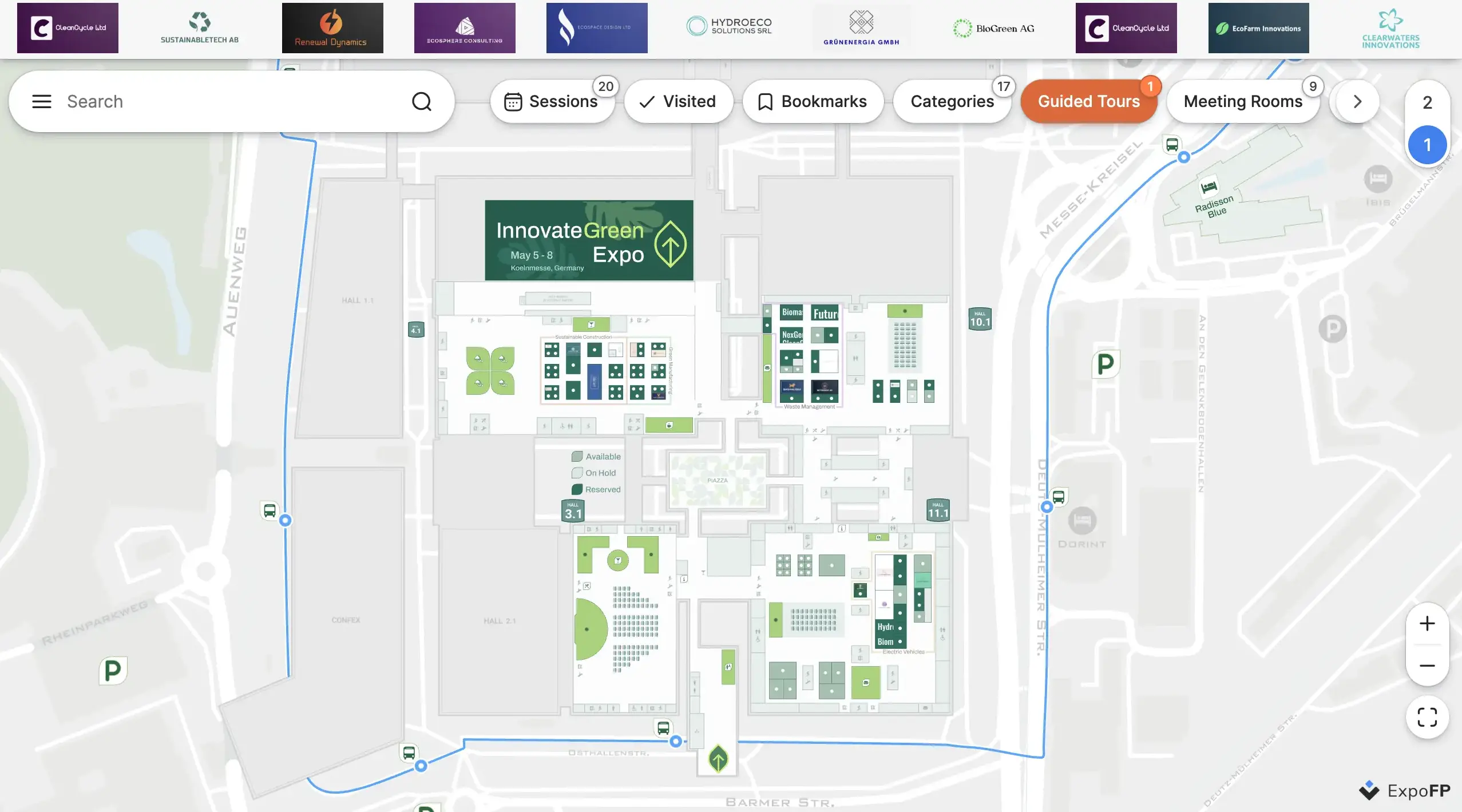
Open a floor plan.
Step 2
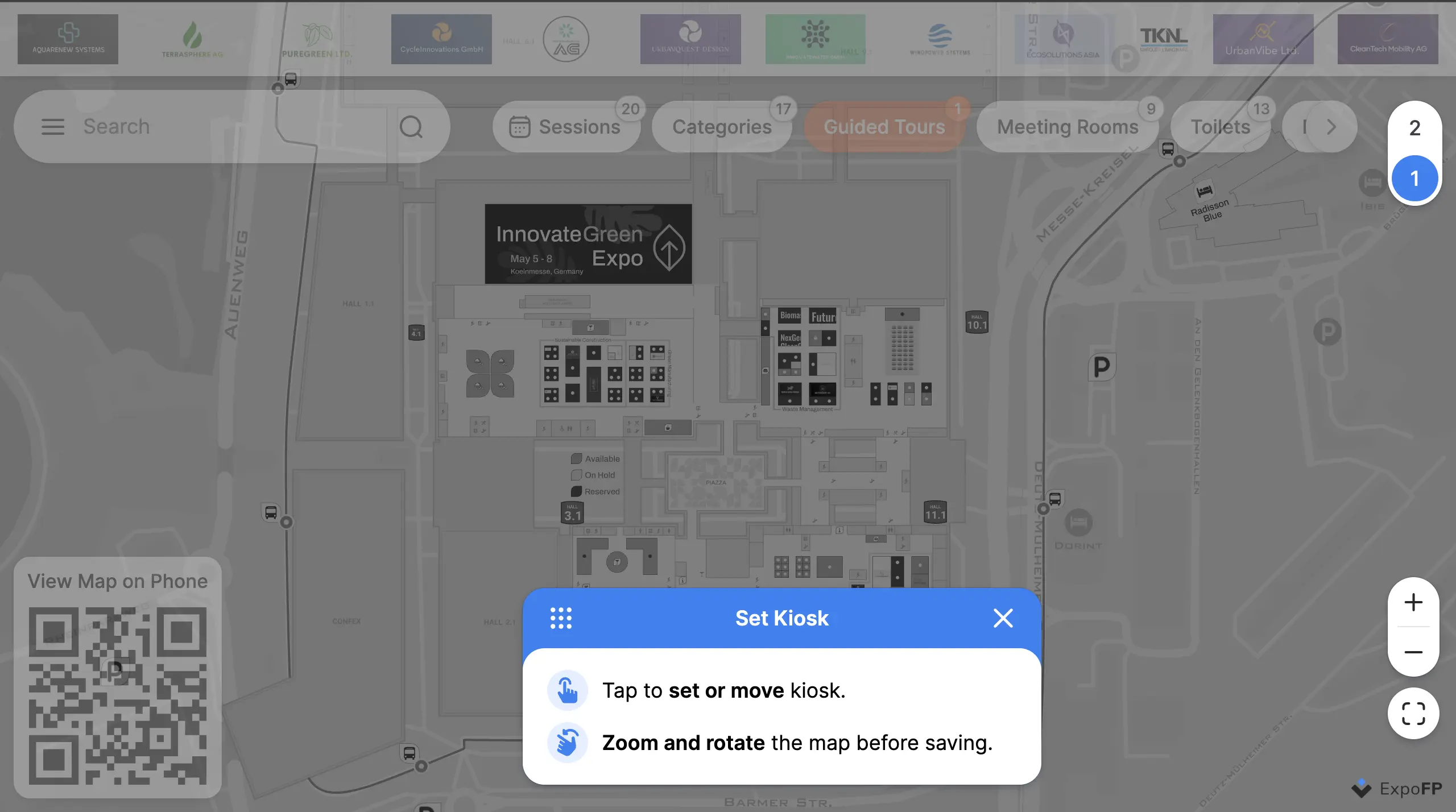
In the search bar, type setkiosk.
TIP
The "setkiosk" value can be changed to any other character sequence (e.g., "setkiosk123"). Contact support to request this change.
Step 3
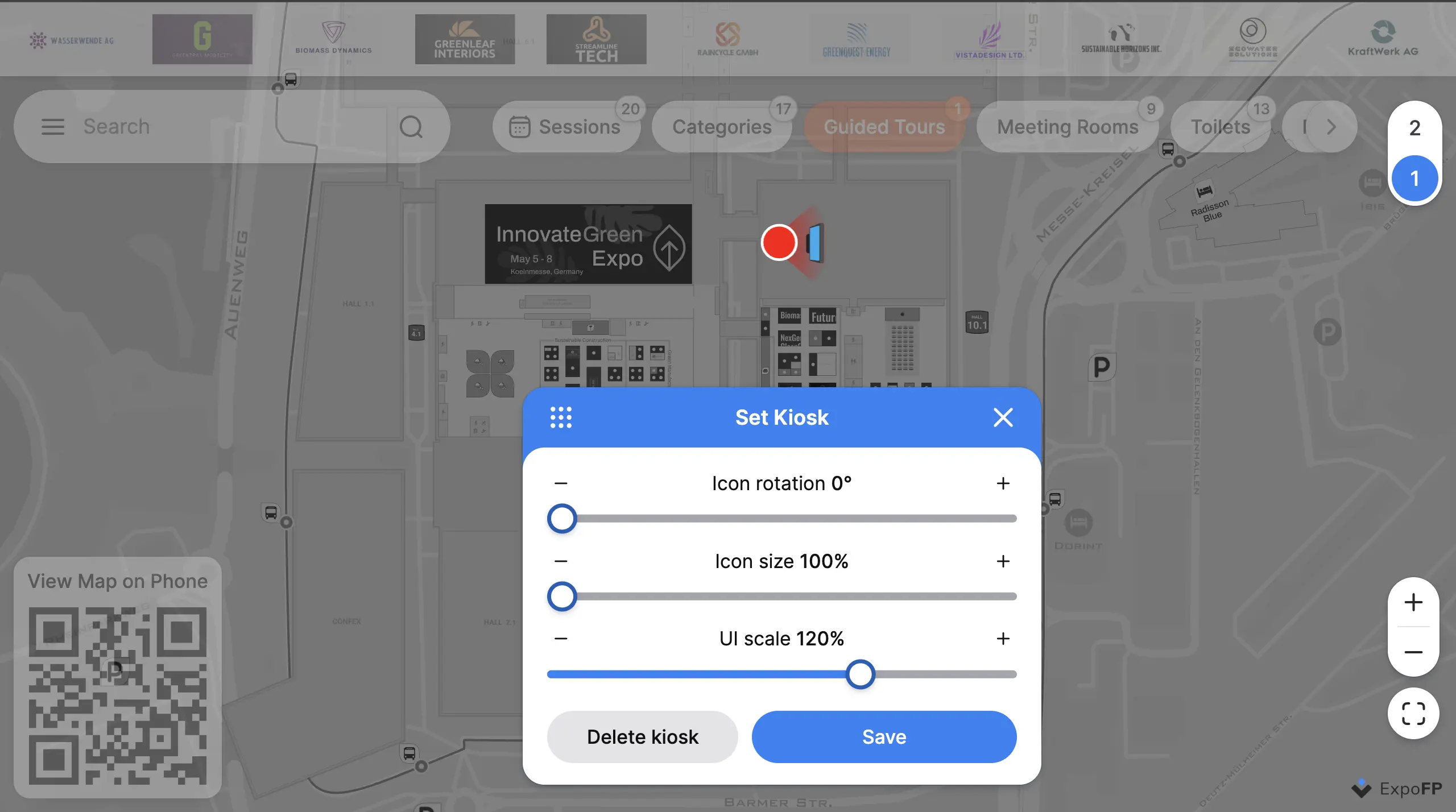
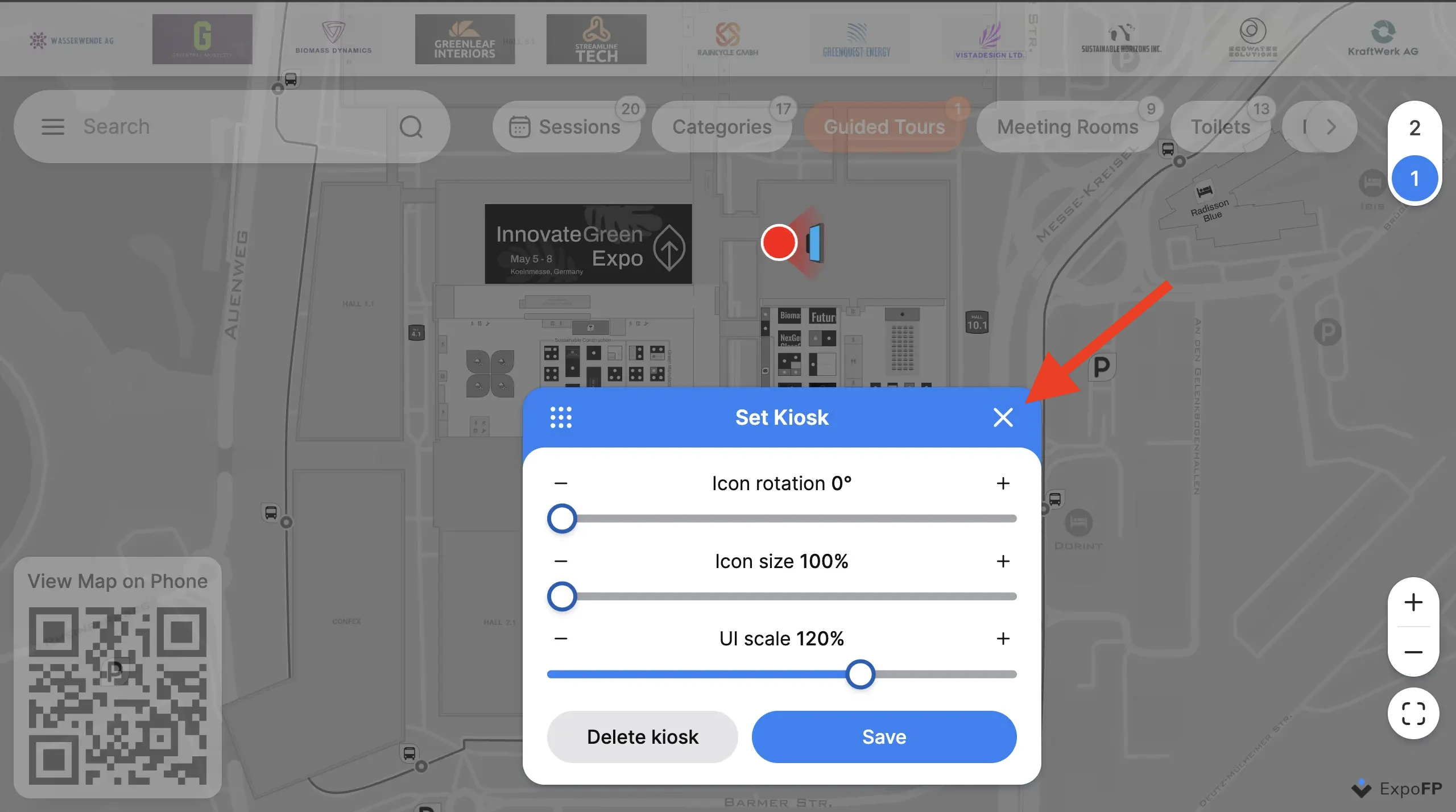
Click on the screen where the kiosk should be.
Step 4
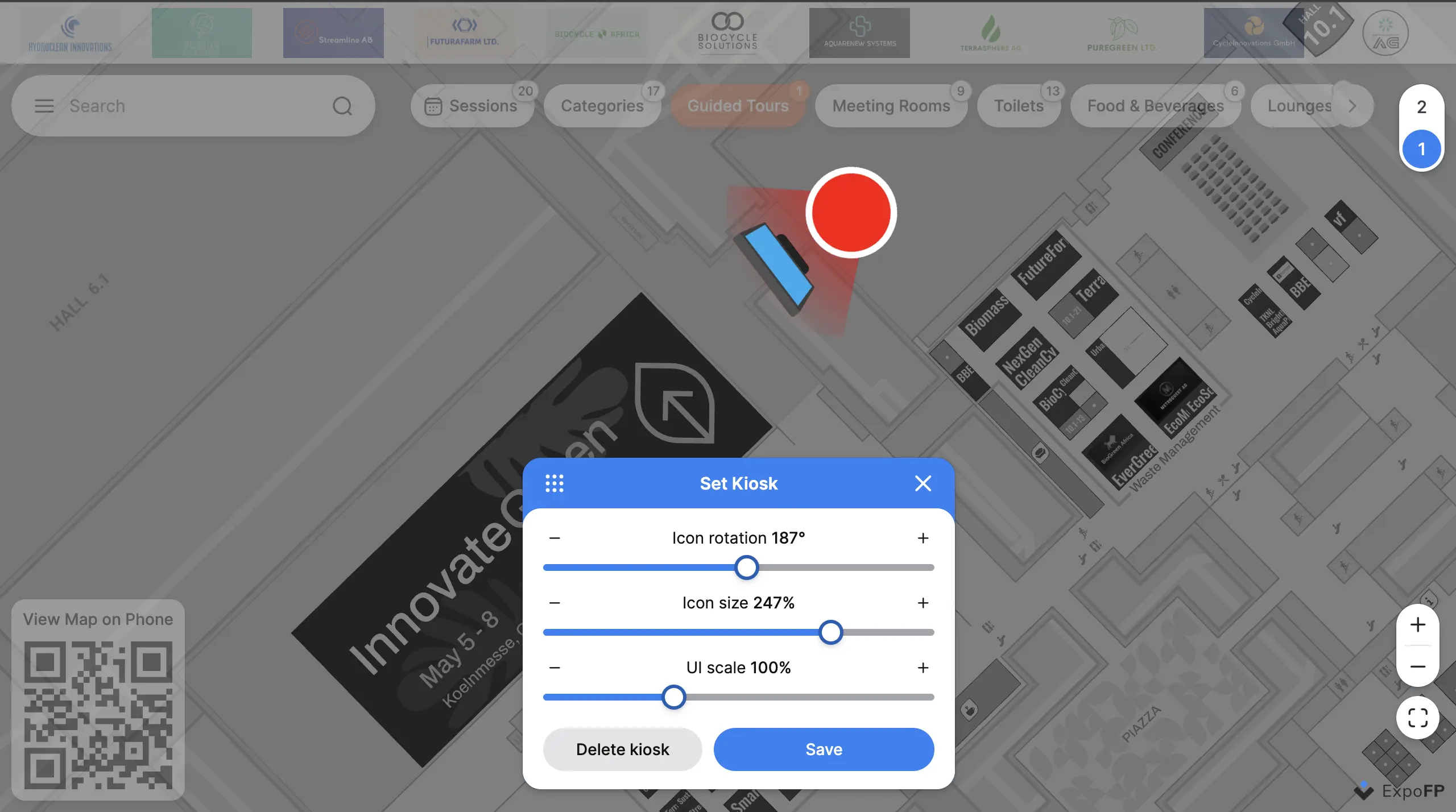
Optionally, adjust the kiosk icon (size and rotation), interface size, and map (rotation, zoom, and position).
Step 5
Save.
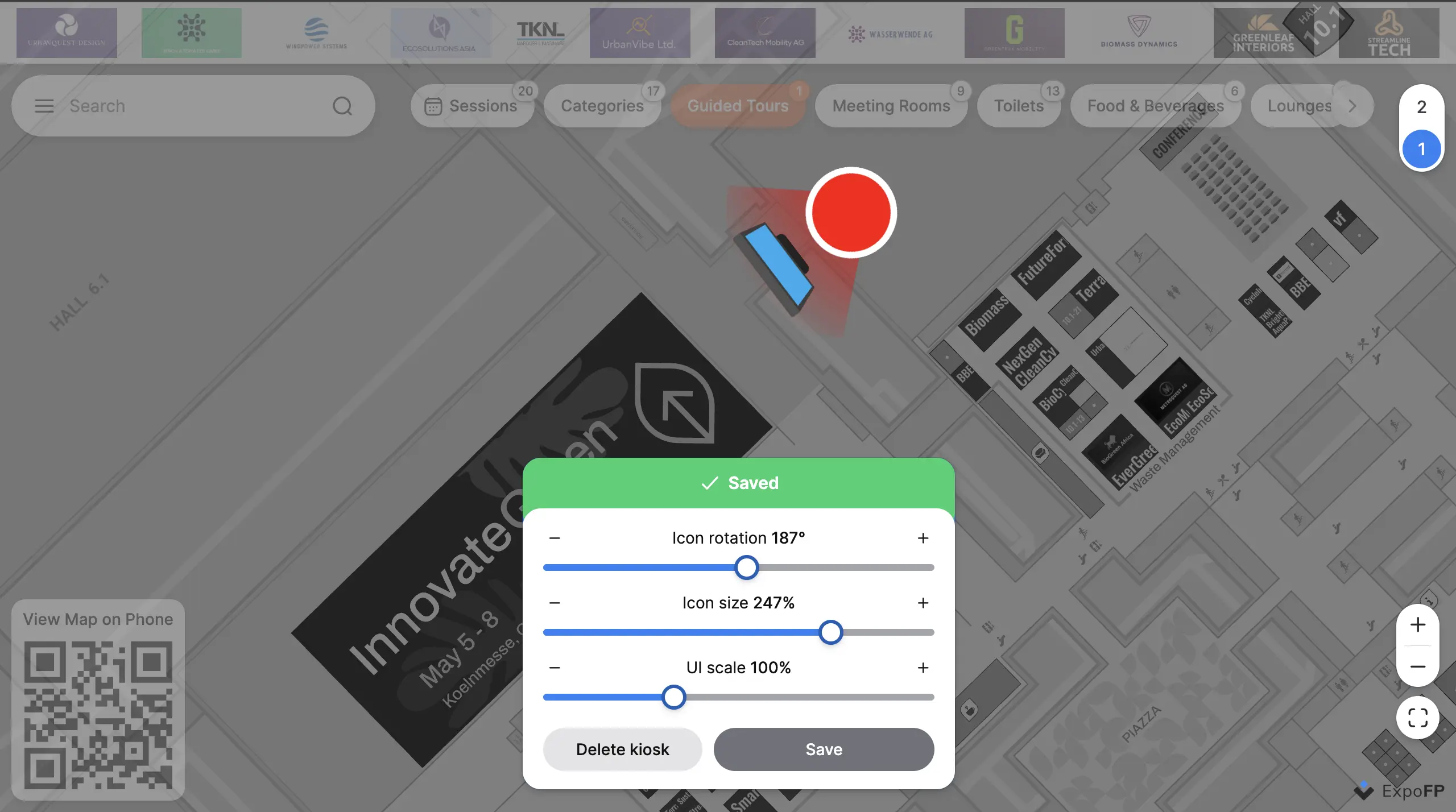
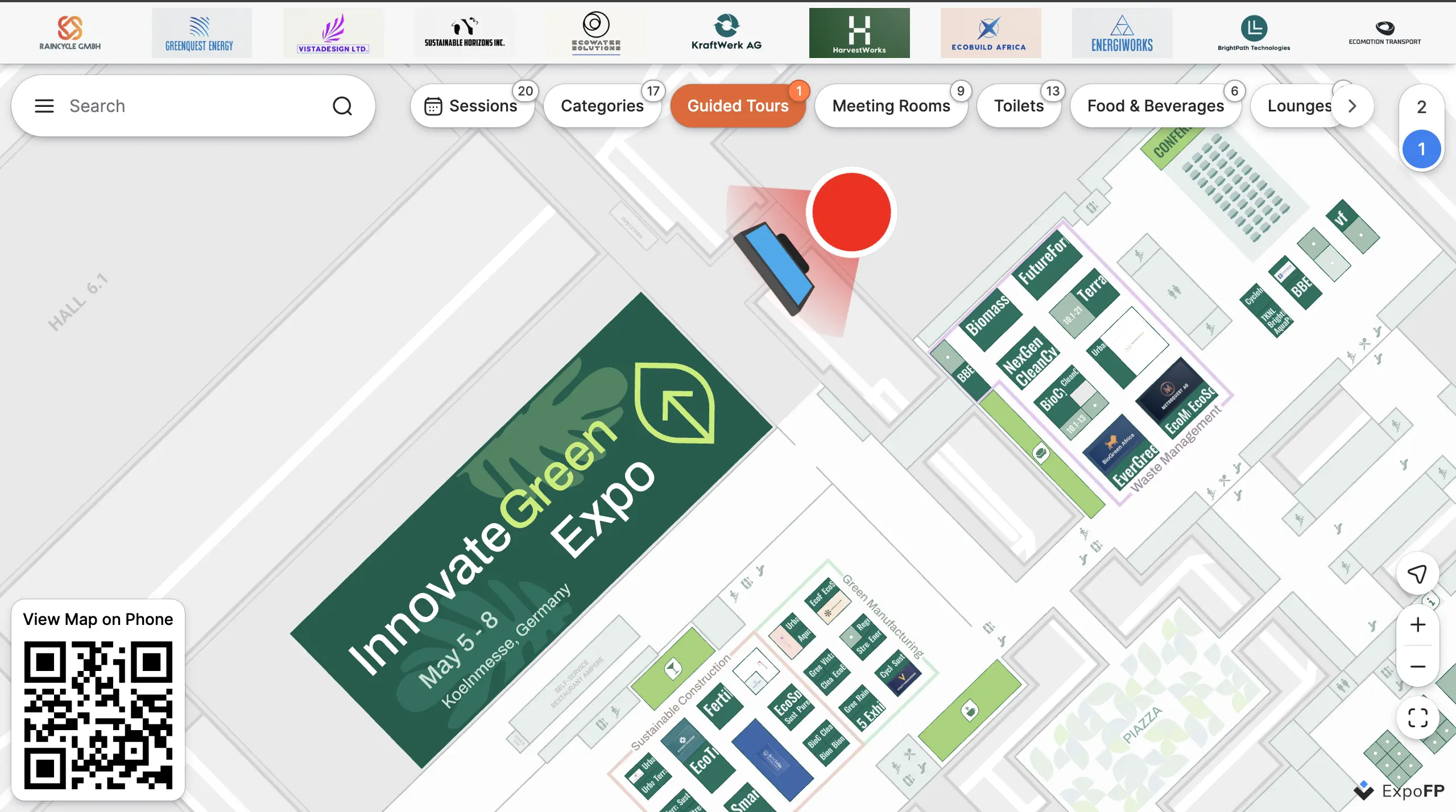
Step 6
Close.
How to Edit a Kiosk
To edit an existing kiosk, repeat the process from step 1.
How to Exit Setkiosk Mode
To exit the mode, press the close button.
Advanced settings for offline use
You can also set up the kiosk for offline use
Additional information
To temporarily disable kiosk mode, you can reopen the plan with the corresponding kiosk query parameter.
For example:
- Disable kiosk mode: https://demo.expofp.com/?kiosk=0
- Enable kiosk mode again: https://demo.expofp.com/?kiosk=1